

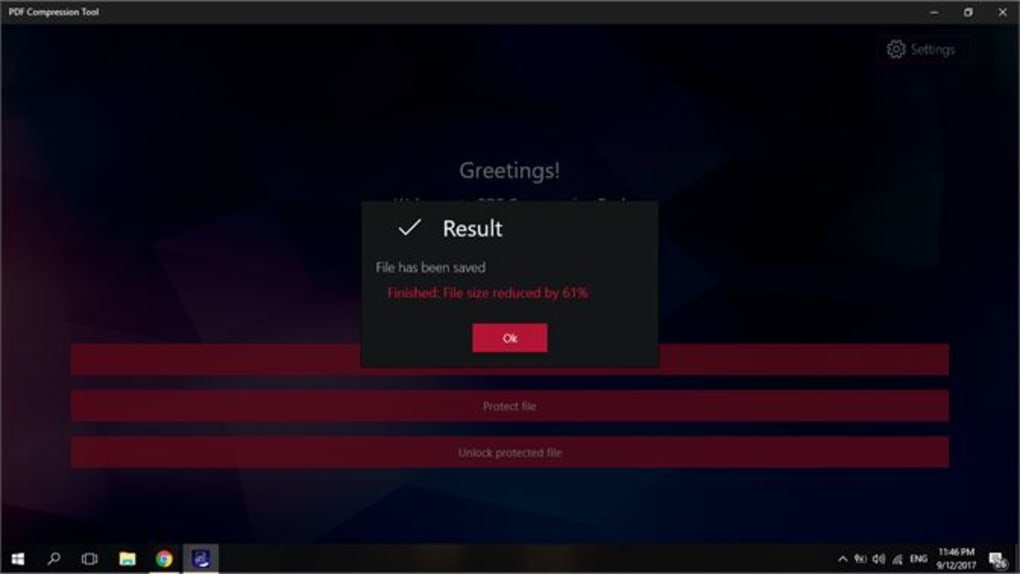
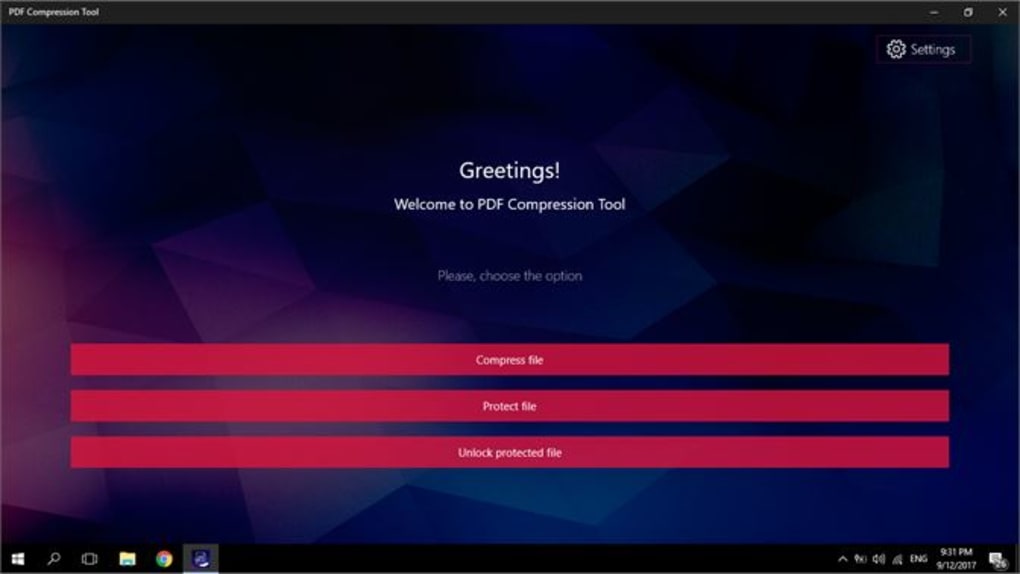

Download PDF Compression Tool – Free, Secure & Fast PDF Optimization for Windows, Mac, Android & iOS
Looking for a reliable way to reduce the size of your PDF files without sacrificing quality? The PDF Compression Tool is your go-to solution. This powerful, free software helps you shrink large PDFs for faster sharing, email attachments, and cloud storage uploads.
Whether you're a student, professional, or casual user, this tool simplifies the process of optimizing documents across multiple platforms. With support for Windows, Mac, Android, and iOS, you can compress files anytime, anywhere. The intuitive drag-and-drop interface makes it easy to upload and process documents in seconds.
Best of all, your files are encrypted and automatically deleted after 24 hours for maximum privacy. Perfect for anyone who needs to manage large PDFs efficiently and securely.
Why Use a PDF Compression Tool? Key Benefits & Use Cases
PDFs are widely used because they maintain formatting across devices, but their file sizes can become unwieldy—especially when they include high-resolution images, embedded fonts, or complex layouts. This is where a PDF Compression Tool becomes essential. By reducing file size without compromising readability or visual quality, this software helps you streamline workflows and improve digital efficiency. Whether you're sending a 50MB proposal via email (which may trigger size limits), uploading a portfolio to a job portal, or backing up documents to the cloud, a smaller file means faster transfers and less storage strain.
One of the standout benefits of this tool is its cross-platform compatibility. You can use it on Windows, Mac, Android, and iOS—making it ideal for users who switch between devices. The tool supports direct uploads from Google Drive, Dropbox, and even remote URLs, so you don’t need to download files first.
This is especially useful for remote teams or freelancers who rely on cloud-based collaboration. Plus, the secure environment ensures your sensitive documents remain private. Files are processed on encrypted servers and automatically deleted after 24 hours, so you don’t have to worry about data leaks.
Another major advantage is the user-friendly interface. No technical skills are required—just drag and drop your PDF, select compression level, and let the tool do the rest. The process takes seconds, and you get instant feedback.
This makes it perfect for beginners and professionals alike. Whether you're compressing a one-page invoice or a 200-page thesis, the tool handles all file types efficiently. It’s also free to use, with no hidden charges or watermarks, which is rare in the world of document optimization tools.
How to Use the PDF Compression Tool: Step-by-Step Guide
Using the PDF Compression Tool is incredibly simple, even for first-time users. Here’s a step-by-step breakdown of the process:
- Sign Up for an Adobe Account – Since this tool is powered by Adobe, you’ll need a free Adobe ID to get started. Visit the official Adobe website, click “Sign In,” and create your account in under a minute.
- Access the PDF Compression Tool – Once logged in, navigate to the Adobe Acrobat online services section. Look for the “Compress PDF” tool, which is listed under document optimization features.
- Upload Your File – Click “Choose File” or drag and drop your PDF directly into the upload zone. You can also import from Google Drive, Dropbox, or paste a URL to a file stored online.
- Select Compression Level – The tool offers two main options: “Standard” (recommended for most users) and “High” (for maximum size reduction). Choose based on your needs—high compression may slightly reduce image quality.
- Start Compression – Click “Compress” and wait a few seconds. The tool will process your file and generate a smaller version.
- Download the Optimized PDF – Once complete, click “Download” to save the compressed file to your device. You can also share it directly via email or cloud link.
The entire process takes less than a minute for most files. There’s no need to install software—everything runs in your browser. This makes it ideal for quick fixes on the go. Additionally, the tool preserves all text, hyperlinks, and form fields, ensuring your document remains fully functional after compression. It’s also perfect for batch processing, allowing you to compress multiple files in one session.
Compatibility, Features & Technical Details
The PDF Compression Tool is designed for maximum accessibility. It supports Windows, Mac, Android, and iOS, making it one of the most versatile tools in its category. Whether you’re using a desktop, laptop, tablet, or smartphone, you can compress PDFs seamlessly. The mobile apps for Android and iOS are available on their respective app stores and offer the same core functionality as the web version.
Key features include:
- Drag-and-Drop Upload – Effortlessly add files without navigating through folders.
- Cloud Integration – Import directly from Google Drive, Dropbox, and OneDrive.
- Multiple Compression Levels – Choose between standard and high compression.
- Preserves Document Integrity – Keeps text, links, and form fields intact.
- Automatic File Deletion – Files are erased from servers after 24 hours for privacy.
- Secure, Encrypted Processing – Ensures your data stays protected during upload and compression.
While the tool is free, it does require an Adobe account. Some advanced features, like batch processing and custom compression settings, are only available in paid Adobe Acrobat Pro versions. However, for most users, the free version offers more than enough functionality. The tool is regularly updated to improve performance, fix bugs, and enhance security. You can check for updates automatically through the Adobe app or website.
Pros and Cons: Is This Tool Right for You?
Before deciding, it’s important to weigh the advantages and limitations of this PDF Compression Tool.
Pros
- ✅ Free to use with no hidden fees
- ✅ Works on Windows, Mac, Android, and iOS
- ✅ Secure, encrypted processing with auto-delete
- ✅ Simple drag-and-drop interface
- ✅ Preserves text, links, and form fields
- ✅ Supports cloud storage integration
- ✅ Fast processing and instant download
Cons
- ❌ Requires an Adobe account (not ideal for privacy-focused users)
- ❌ Limited control over compression settings
- ❌ No offline mode (requires internet connection)
- ❌ Advanced features locked behind Adobe Pro subscription
- ❌ Compression quality may vary with complex files
Frequently Asked Questions (FAQ)
Is the PDF Compression Tool free to use?
Yes, the PDF Compression Tool is completely free to use for basic compression tasks. You only need a free Adobe account to access it, and there are no charges for standard compression.
How long are my files stored after compression?
Your files are automatically deleted from Adobe’s servers 24 hours after upload. This ensures your data remains private and secure.
Can I compress multiple PDFs at once?
Yes, you can upload and compress multiple PDFs in a single session. Simply select all files before starting the compression process.
Does the tool reduce image quality?
High compression settings may slightly reduce image quality. However, the tool is designed to maintain readability and visual clarity for most documents.
Is the tool available offline?
No, the PDF Compression Tool requires an active internet connection to function. It is a cloud-based service and cannot be used offline.
Final Verdict: A Must-Have Free PDF Optimization Tool
If you're searching for a free, secure, and easy-to-use PDF Compression Tool, this Adobe-powered solution is one of the best options available. It’s ideal for students, professionals, and casual users who need to reduce file sizes quickly and safely. While it lacks advanced customization, its simplicity, cross-platform support, and strong privacy features make it a standout choice.
Despite minor limitations like the need for an Adobe account and no offline mode, the benefits far outweigh the drawbacks. With regular updates, cloud integration, and automatic file deletion, you can trust this tool with sensitive documents. Whether you're preparing a presentation, submitting a resume, or backing up files, this tool delivers reliable results.
Download the PDF Compression Tool today and simplify your document management workflow—no cost, no hassle, just fast, secure optimization.







